Create and edit tasks
Verbels may not catch every action item from a meeting. You can create tasks it missed, update ones that need correction, and remove ones that do not belong.
Create a task
Select + Create new task at the bottom of the task list. A panel opens on the right side of the page.
- Enter a clear task label.
- Add the people responsible for the task.
- Choose a due date if there is one.
- Select Save task.
The new task appears in the list with a confidence score of 100%.
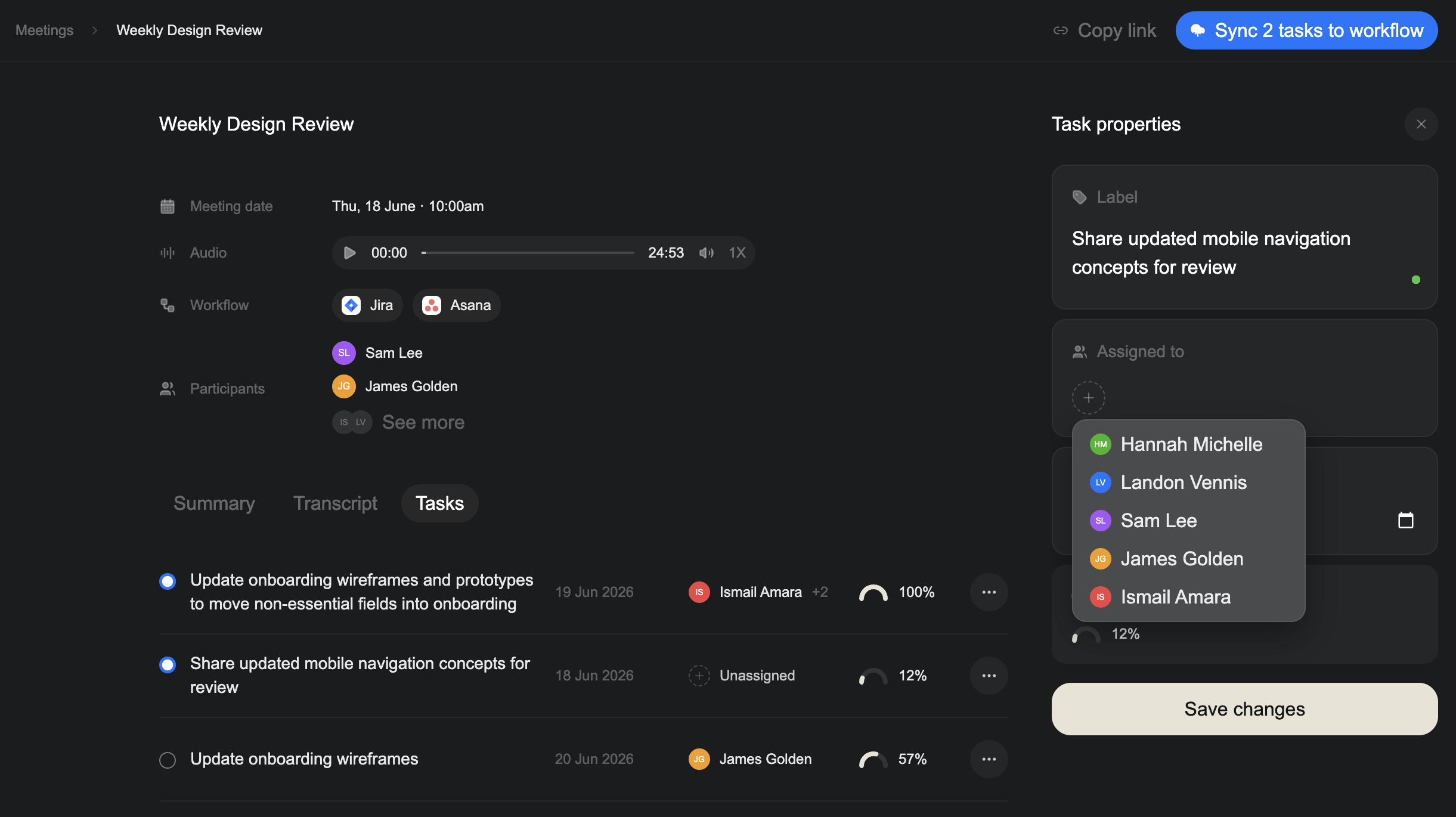
Edit a task
- Select the options menu (...) beside the task.
- Select Edit task properties.
- Update the task label, assignees, or due date.
- Select Save changes.
Verbels automatically sets the confidence score to 100% after you save.
Delete a task
- Select the options menu (...) beside the task.
- Select Delete. A confirmation dialog appears.
- Select Delete to confirm.
Deleting a task cannot be undone.