View a meeting
Open a processed meeting to see what happened, who joined, and what needs to be done next.
Open a meeting
- Open Meetings.
- Find the meeting you want to review.
- Open the options menu beside the meeting.
- Select View meeting.
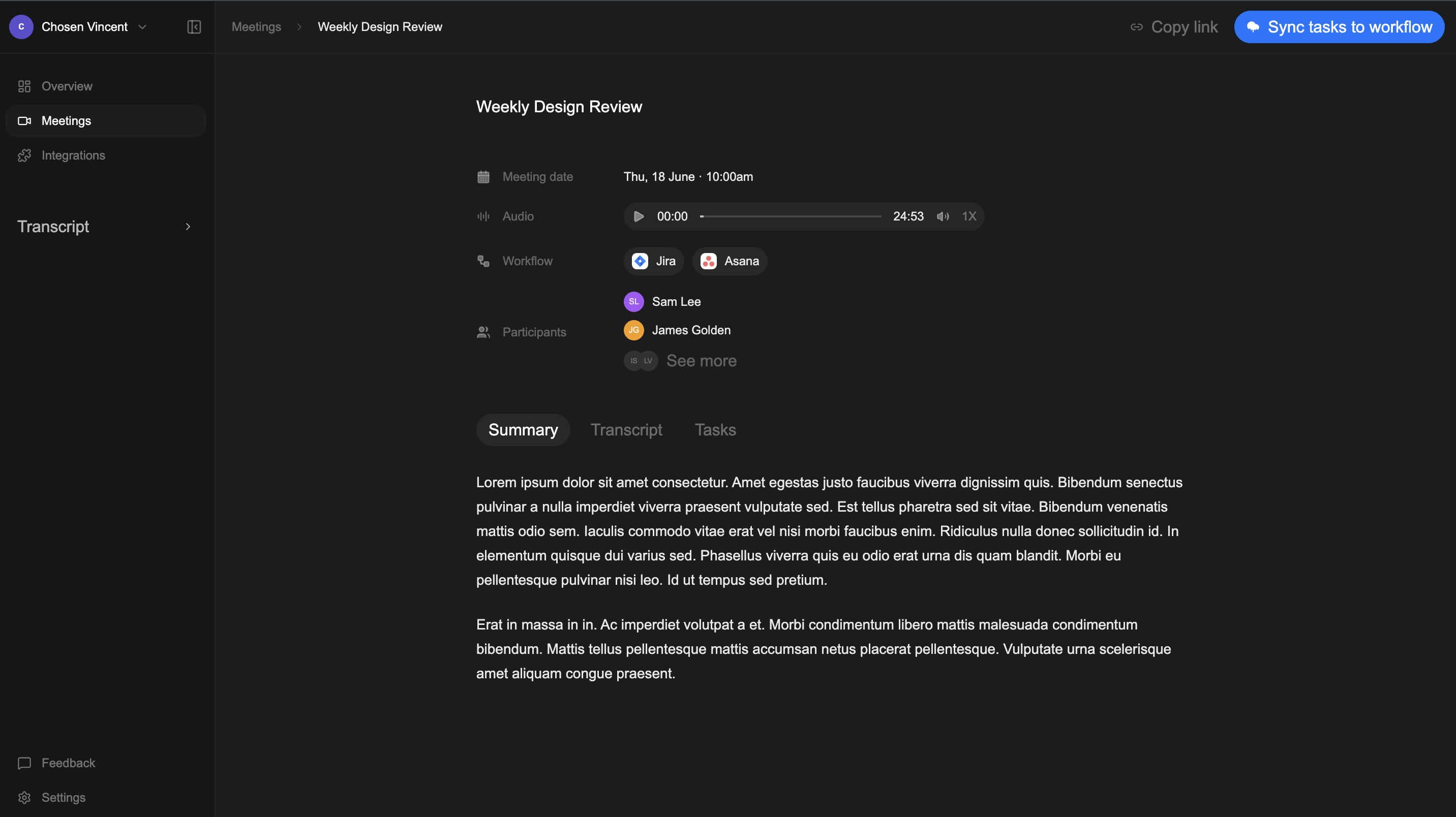
Meeting details
The details below the meeting name give you a quick overview of the meeting.
| Detail | What it shows |
|---|---|
| Meeting date | The day and time the meeting took place. |
| Audio | The recording, your current position, and the full length. Select play to start and pause. Use the timestamps to find a specific part of the conversation. |
| Workflow | The tools connected to Verbels, such as Jira or Asana. |
| Participants | The people Verbels identified in the meeting. Select See more to view all names. |
Meeting tabs
| Tab | What you will find |
|---|---|
| Summary | A shorter account of the main discussion. |
| Transcript | The full conversation arranged by speaker and time. |
| Tasks | Action items Verbels generated or you added manually. |
Learn how to review the summary and transcript, or go to the Tasks guide to work with action items.
Manage the meeting
Copy the meeting link
Select Copy link at the top of the page. Verbels copies the link to your clipboard and shows a confirmation message.
Rename the meeting
- Return to the Meetings list.
- Open the options menu beside the meeting.
- Select Rename meeting.
- Enter the new name and press Enter.
Sync tasks to a workflow
Open the Tasks tab and select the tasks you want to send. Select Sync tasks to workflow. The button shows how many tasks you have selected.