Upload a transcript
Upload a transcript when a meeting has already happened. Verbels will process the conversation and create a summary and task list for you to review.
Make sure the file contains the full conversation and does not include information you do not want Verbels to process.
How to upload transcript
- Open Meetings from the dashboard.
- Select Add external meeting.
- Keep Upload transcript selected.
- Enter a name for the meeting.
- Select the upload area and choose the transcript from your device.
- Check the file name shown in the window.
- Select Upload.
Use a name that you will recognize in the Meetings list. Something like Weekly design review or Customer onboarding call.
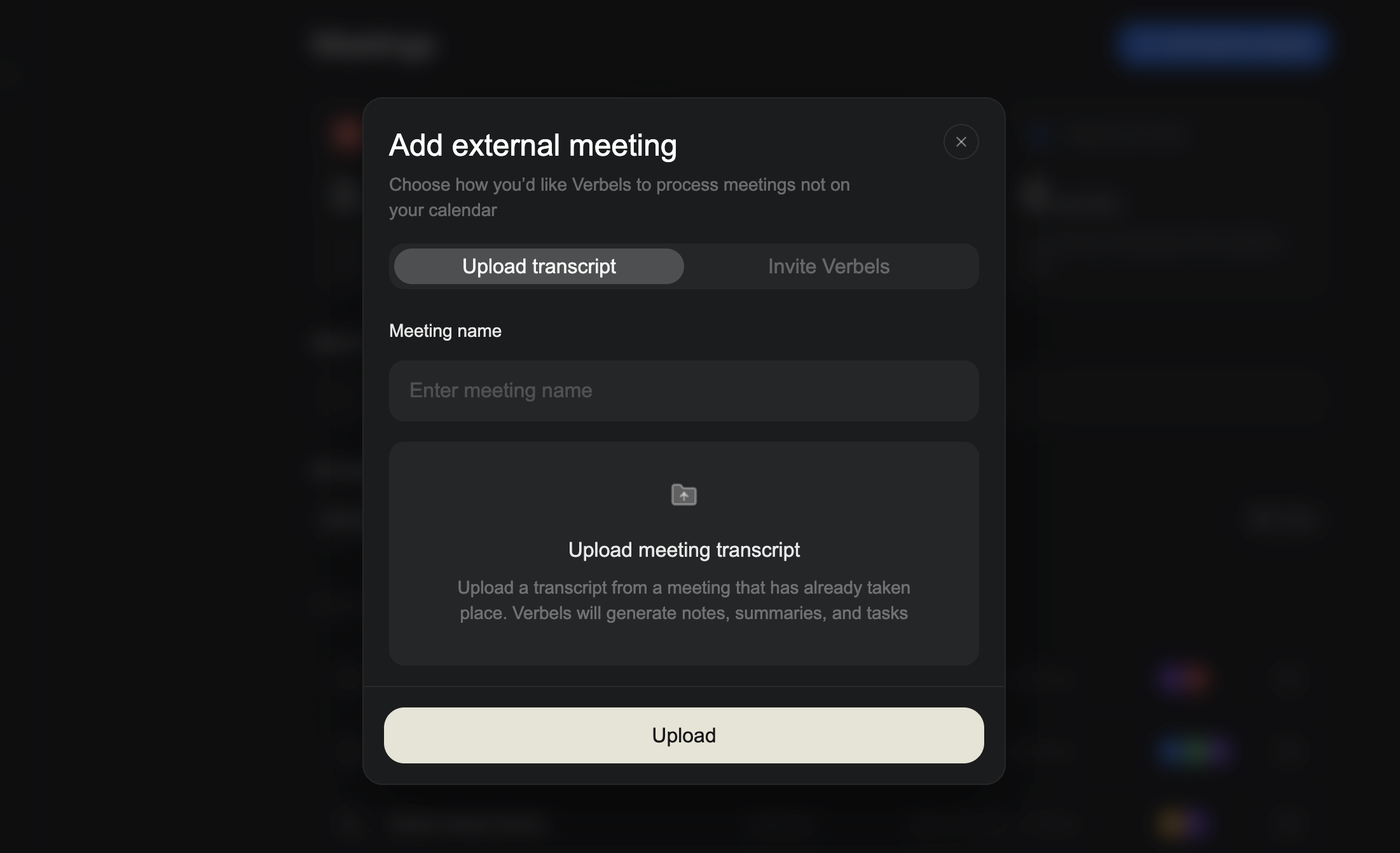
Keep the window open while the file uploads. After the upload finishes, Verbels will process the transcript. You can leave the Meetings page and return while it works.
If the meeting has not happened yet and you have a Zoom, Microsoft Teams, or Google Meet link, invite Verbels to join it instead.
Find the processed transcript
The meeting will appear on the Meetings page with Uploaded as its source. Open it when processing is complete to review the summary, transcript, and generated tasks.
Learn how to review summaries and transcripts.
If the upload does not work
Check that:
- You entered a meeting name.
- You selected the correct transcript file.
- The file finished uploading before you closed the window.
- Your internet connection is working.
Try the upload again after checking these items. If Verbels receives the file but cannot process it, see Meeting processing failed.