Connect a calendar
Connect your calendar so Verbels can find your scheduled meetings. You can then choose which meetings Verbels should join.
Supported calendars
 Google Calendar
 Outlook Calendar
Before you connect, make sure you can sign in to the Google or Microsoft account connected to the calendar you want to use.
Verbels can use one calendar at a time. If you want to use another provider later, you will need to disconnect the current calendar first.
Connect your calendar
- Open Settings.
- Stay in the Account tab.
- Scroll down to the Calendar section.
- Select Connect Google Calendar or Connect Outlook Calendar.
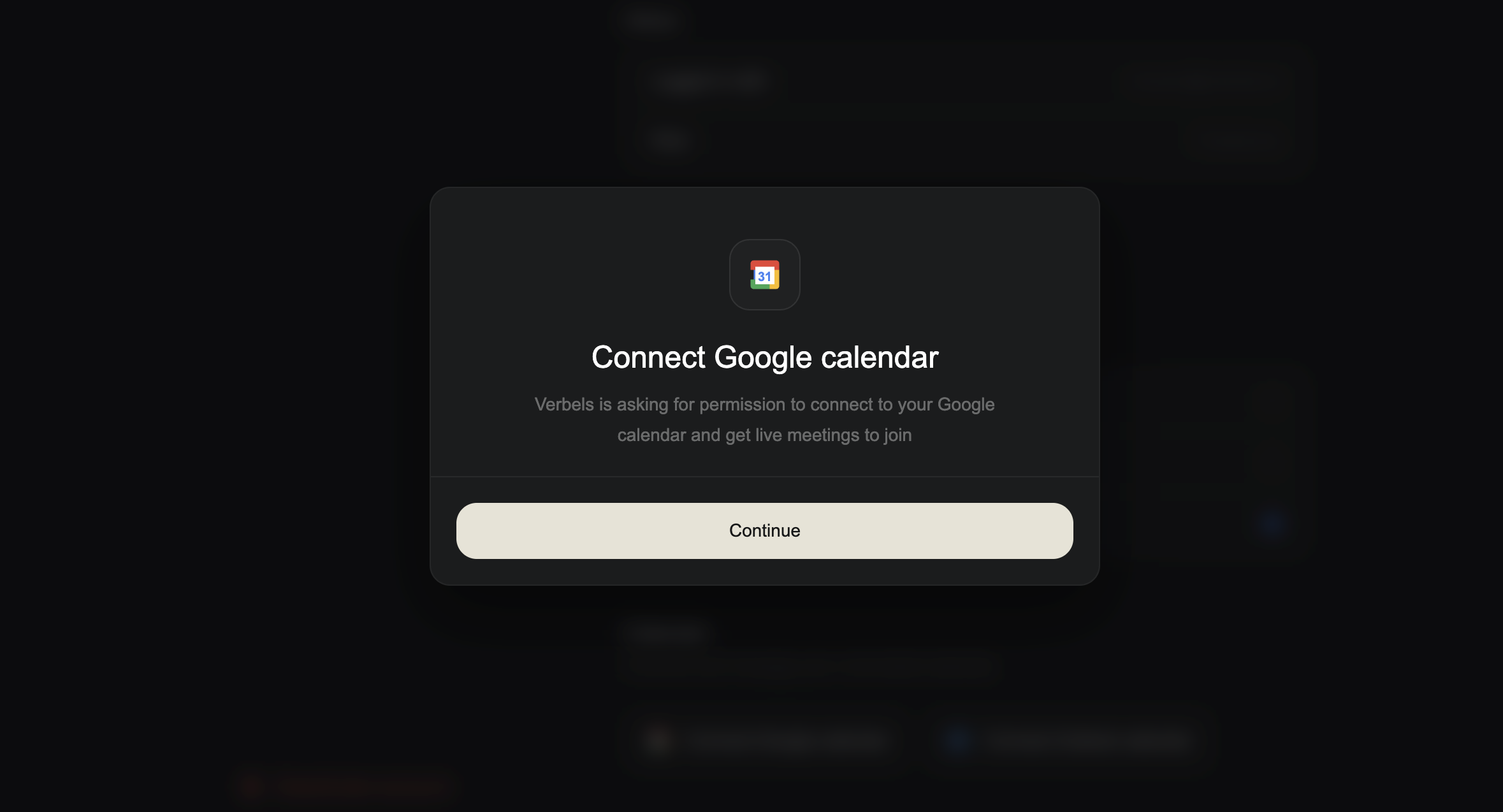
- Read the message explaining why Verbels needs access.
- Select Continue.
- Sign in to your calendar provider and finish the connection.
The page shown by Google or Microsoft may look different from the Verbels window. Follow the instructions from your provider and approve the connection before returning to Verbels.
Check that your calendar is connected
Return to the Calendar section in Settings. Your connected account should now appear under Linked. You will see the calendar provider, the email address connected to it, a Resync button, and a Disconnect button.
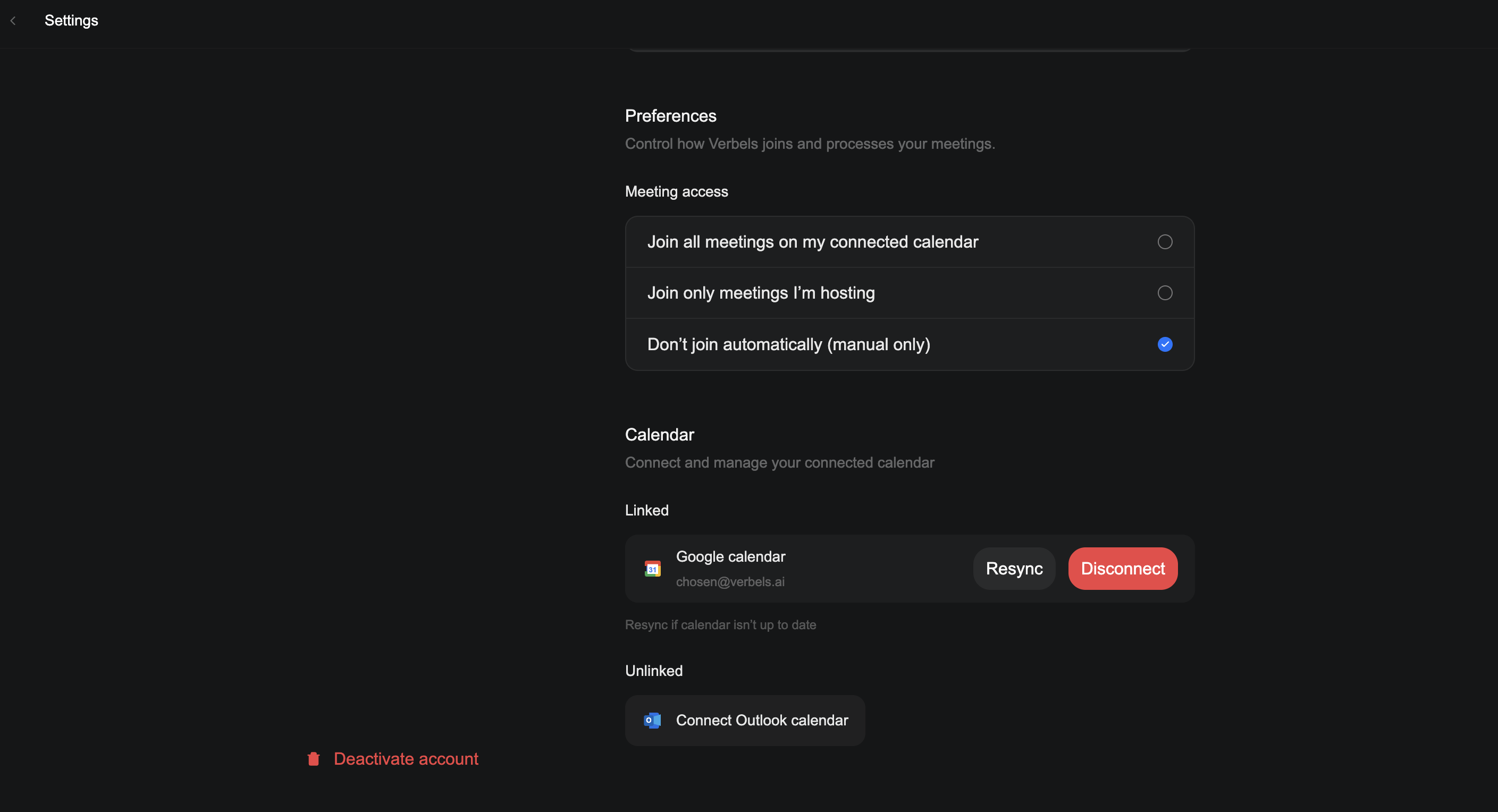
Choose your meeting access preference.
Resync your calendar
Select Resync if a meeting you recently added or changed does not appear in Verbels. This asks Verbels to check the connected calendar again.
Switch to another calendar
To move from Google Calendar to Outlook Calendar, or the other way around:
- Find the connected account under Linked.
- Select Disconnect.
- Confirm that you want to remove the connection.
- Select the other calendar provider under Unlinked.
- Finish the new connection.
If a meeting does not appear
Check that:
- You connected the right calendar account.
- The meeting is on the connected calendar.
- Your meeting access preference allows Verbels to join it.
- You selected Resync and checked the Meetings page again.
If the meeting is still missing, see Calendar is not updating.